
How a catalog find reaches your door through an agent, with a card line at every stop
Follow the six official Mulebuy stages and add the right evidence to your card at each one.
Before following the six screens
This walkthrough follows Mulebuy’s official buying-guide sequence, illustrated with its desktop and mobile demonstration screens from 2026. The current account determines available actions, fees and deadlines. Our October 2026 public-site check did not establish that ordering was available; it does not establish the state of an individual account.
Prepare the seller URL, exact option, quantity, measurements and a budget that includes international shipping. The catalogue helps you find and compare; Mulebuy’s own account handles purchase, warehouse services and parcels. If you choose a different agent, use that agent’s instructions rather than transferring Mulebuy’s button names or terms.
Open the card maker → · Read the received-item evidence · Find help by order stage
1. Search for the product
The homepage search field accepts a marketplace product link or keywords. The camera icon is the image-search entry. For an exact find, keep the seller URL; a visually similar search result can belong to a different shop or option.
In the illustrated screen, paste the seller link into Enter Product Link Or Keyword and use Search. Image search starts from the camera icon. Check the result against the original listing before continuing.
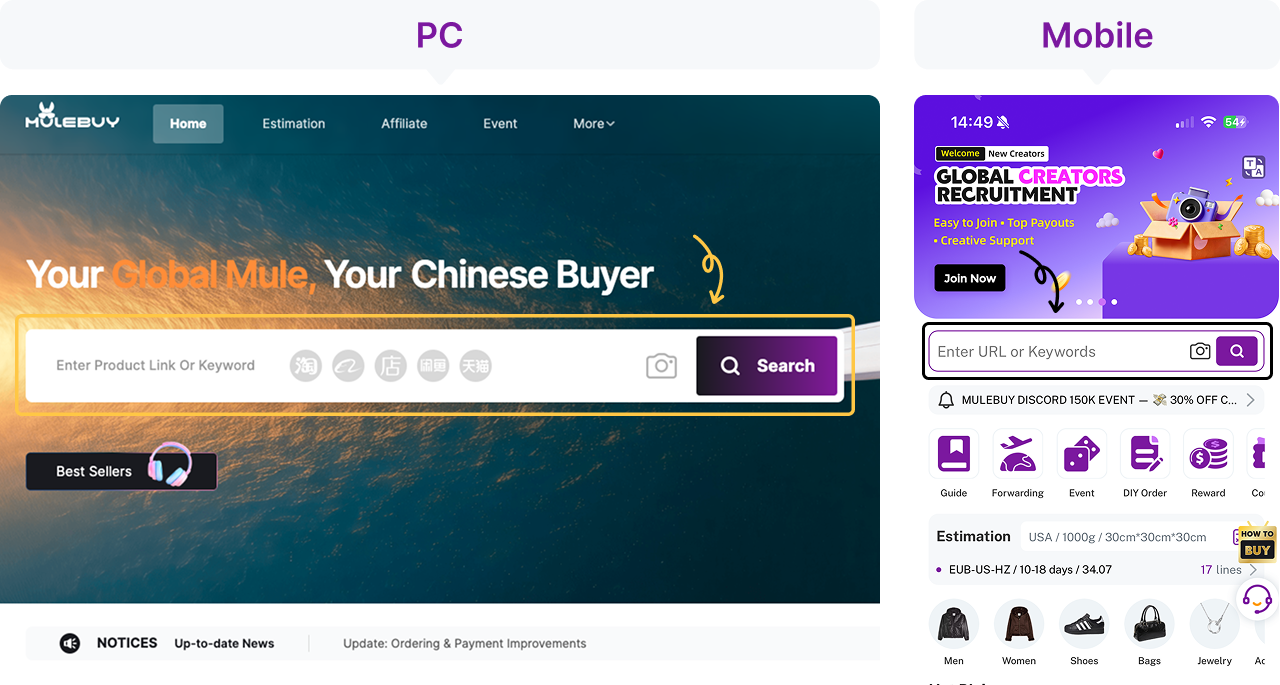
Card fields: seller link, marketplace, listing number and the intended option. Keep the option photo separately from received-item evidence.
2. Choose the option, then complete item payment
Open the product and choose the exact colour, size and quantity. Read the price for that selection, the seller’s domestic postage and any separate checkout charge. The international parcel is a later transaction.
The official example shows Color, Size, Quantity and Note on desktop, and Add To Cart on mobile. Adding to the cart is not payment. Continue through checkout, confirm the requested information and keep the payment record. Ask about missing specifications before authorising a purchase.
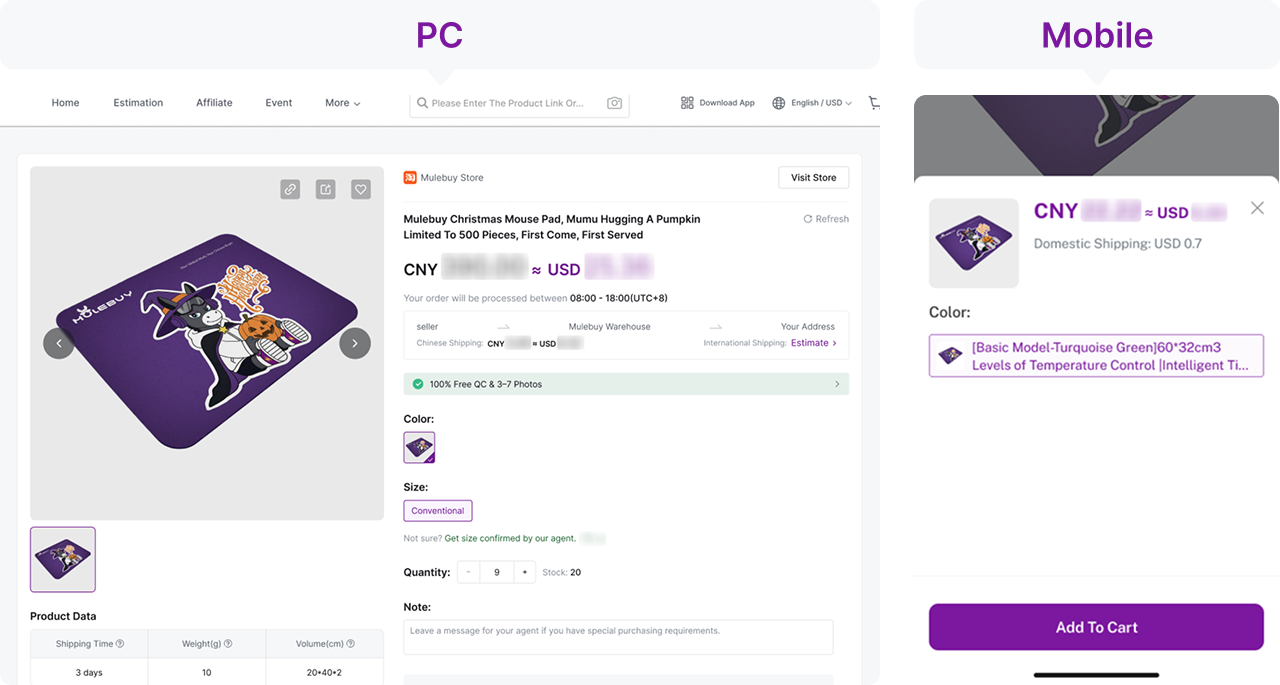
Card fields: chosen colour/size, quantity, quoted charges, first payment and order ID. Record a later adjustment as a new event instead of overwriting the original price.
3. Follow purchase and domestic transit in Orders
After submission, distinguish payment from purchase, and purchase from the seller’s dispatch. An order may still need a price, stock or option decision. A receipt alone does not confirm that the seller has sent anything.
Use Orders and the relevant order’s Details. The demonstration includes Payment Needed, Reply Needed and Order Pending. Read the status and any message together. Keep the domestic tracking number if one is provided; there is no universal number of days for this leg.
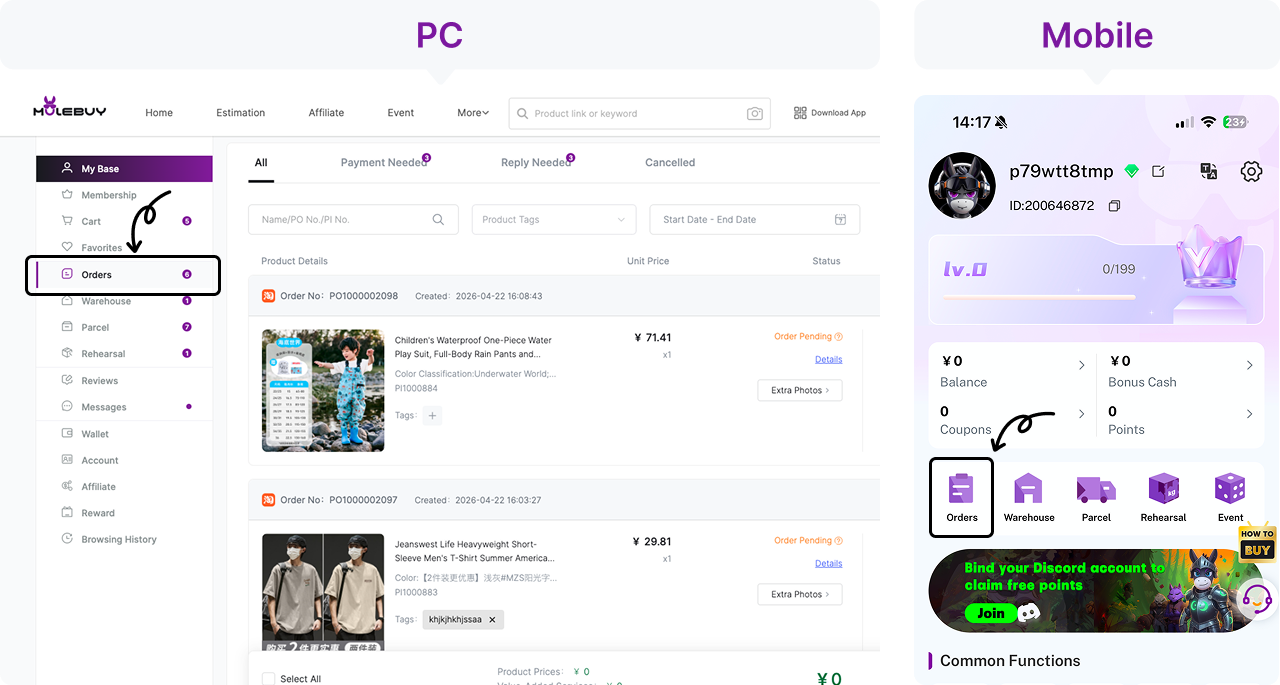
Card fields: purchase status, seller dispatch date and domestic tracking. Leave a date blank until the corresponding event is confirmed.
4. Open Warehouse and inspect the received-item photos
Arrival, inspection and availability for parcel submission are separate events. In the official buying sequence, warehouse inspection follows domestic delivery. Check each received item against the paid option and quantity before selecting it for international shipping.
Open Warehouse, find the order and open its QC Photos thumbnail. Check the whole item, the option label and the relevant detail. If a dimension is missing, ask for a specific tape-photo view and confirm any extra charge. Visible photos do not certify authenticity, material composition or electronic function.
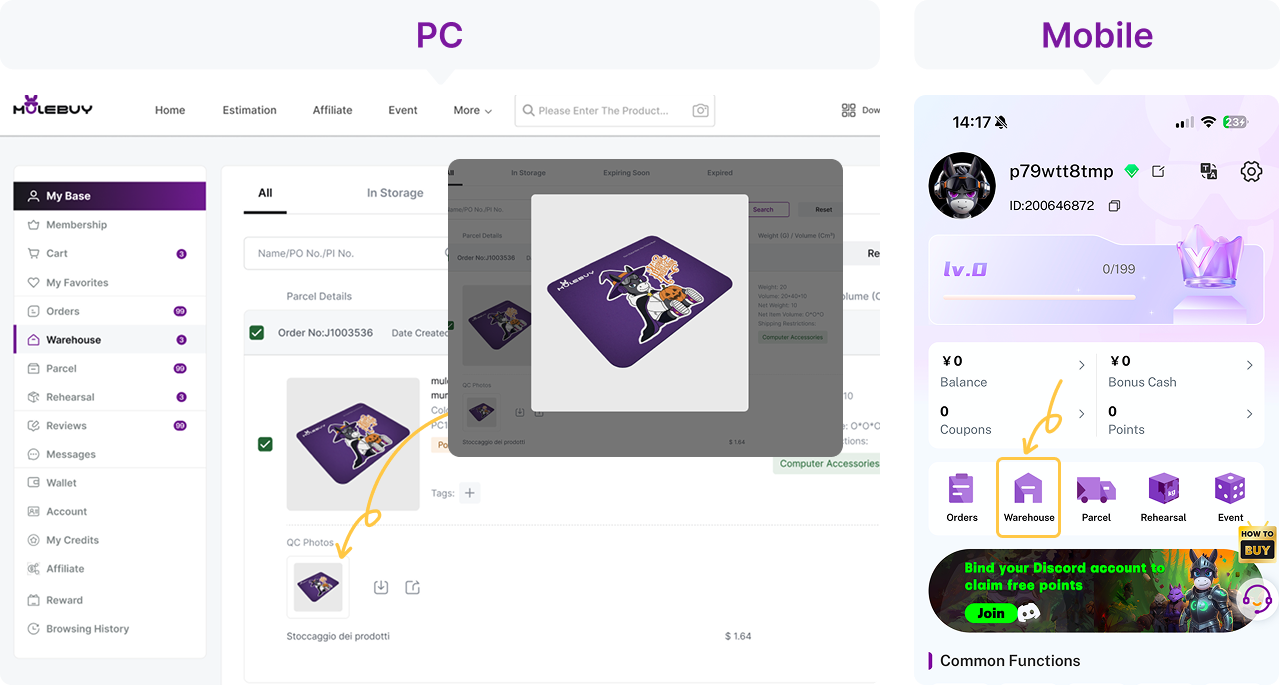
Card fields: stored date, received photos, unresolved questions and the deadline shown for your item. Record storage and return deadlines separately; they are not the same clock.
5. Select accepted items and submit the parcel
Choose only items whose questions have been resolved. Confirm the destination, packing choices and a line that accepts the contents. Keep unresolved items separate and check their storage deadlines; a long free-storage period does not extend a seller’s return window.
The guide text calls the warehouse actions Pre-calculate or Submit; this illustration labels the desktop alternative Rehearsal Packing and highlights Submit. Follow the label in your account. Review the estimate and optional services before confirming. Final size and weight can change the shipping charge, requiring a payment or refund of the difference.
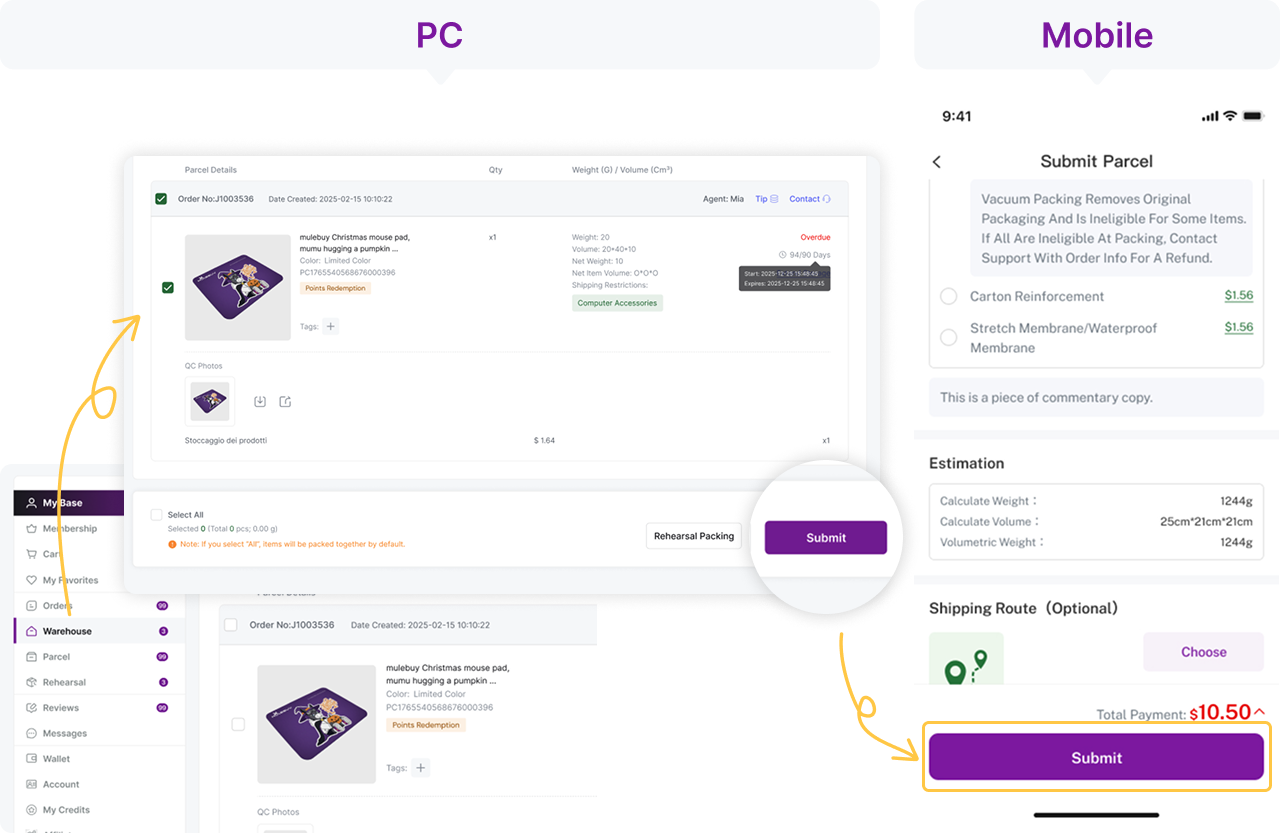
Card fields: selected items, parcel ID, packing request, line, estimated charge and final settlement. Keep a record for any item left in storage.
6. Track the parcel and keep the delivery record
The official guide ends with parcel tracking. Keep the parcel ID distinct from the individual order IDs, because several orders can share one parcel. A parcel record or tracking number is not itself proof of carrier handover or delivery.
Open Parcel (called Parcels in the guide text) and Details for that shipment. Read its current status and tracking scans. At delivery, preserve the label, packaging and a clear record of the contents. For a mismatch, contact the agent through the channel attached to the order and supply the item and parcel references.
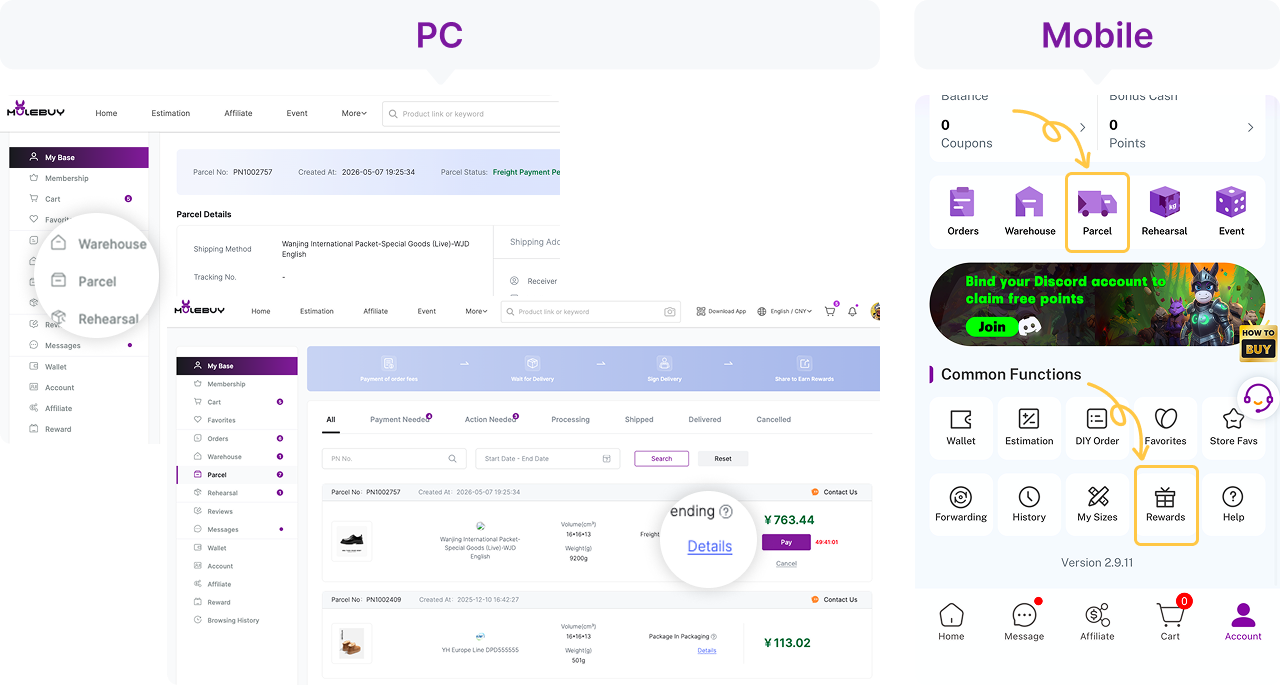
Card fields: tracking, delivery date, condition and any support reference. Export the card before clearing browser data; this site’s card file cannot recover an agent account.
One saved card, separate evidence at every handoff
A card for a watch should keep the exact dial colour, bracelet option and seller URL. Do not replace those fields with “same as picture” when the gallery shows several colours. Save the selection before you pay so a later edited listing does not overwrite what you agreed to buy.
- Before payment: record the chosen option, included packaging, stated dimensions and questions about movement or battery.
- After purchase: add the order ID and actual status. Keep an unanswered question visibly unresolved.
- At the warehouse: attach the received-item photos. Check the dial, bracelet and included parts against your card.
- Before shipping: confirm the route accepts the item as packed. A photograph does not establish battery type or a carrier’s restrictions.
- At delivery: keep the parcel record and record any problem promptly through the relevant support channel.
The card maker stores your notes locally in this browser. It is not an agent account and does not recover a missing order. Export a text copy if you need the record on another device or before clearing browser data.